Enabling Macros for the TechInsights Data Validator
If you’re having issues with enabling macros to allow the TechInsights Data Validator to validate content in a downloaded asset, this article can help. You can also contact TechInsights Support at support@techinsights.com.
About the TechInsights Data Validator
The TechInsights Data Validator ensures that the data in downloaded assets is as accurate as possible. Over time, downloaded content may no longer be current as a result of updates, corrections, and/or additions made on the TechInights Platform. The Data Validator will guide you to ensure the data you have is the latest available.
The Data Validator also digitally watermarks this document based on the organization and user who downloaded it, and protects its use. This is critical to ensuring that TechInsights can maintain content custody, and by extension continue to provide your organization with high-quality information and insights.
Unblock a single file
In most cases you can unblock macros by modifying the properties of the file as follows:
- Open Windows File Explorer and go to the folder where you saved the file.
- Right-click the file and choose Properties from the context menu.
- At the bottom of the General tab, select the Unblock checkbox and select OK.
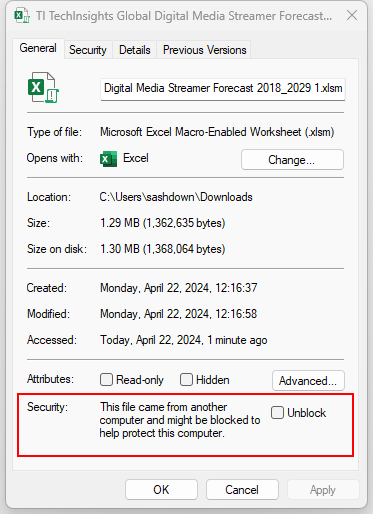
If you don't see the Unblock checkbox in Properties, try one of the options below.
Unblock all files from a specific network share or website
If you often download files from TechInsights, you can set the TechInsights as a trusted site in Windows so macros from the site won’t be checked.
- Tap the start button or Windows key and type Internet Options.
- Select Internet Options from the search results and the Internet Properties dialog box appears.
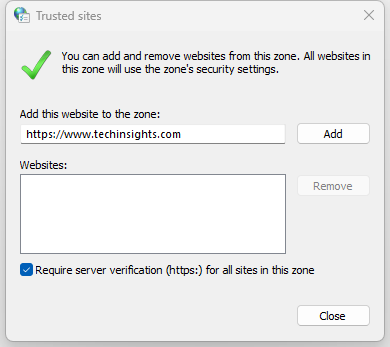
- On the Security tab, select Trusted Sites, and then select Sites.
- Type the URL of the site or server that contains the Microsoft 365 files with the macros you want to run, and then select Add.
- Select Close, and then OK.
Select a heading below for more information.
If you have a specific folder on your computer and you want to trust every file in this folder, you can add it as a Trusted Location.
Warning: You should only do this if you know that every file saved in the folder is trustworthy.
In your Microsoft 365 app:
- Select File > Options.
- Select Trust Center > Trust Center Settings > Trusted Locations.
- Select Add new location.
- Select Browse to find the folder, select a folder, and then select OK.
You can also add TechInsights as a trusted publisher to unblock this macro and any future macros the we sign with the same certificate.
First, you'll need to unblock this particular file using the steps above. Then, you can add the TechInsights as a trusted publisher so that future macros run seamlessly.
For more information, see Microsoft’s article to Add, remove, or view a trusted publisher.
Still unable to unblock the macro?
We recommend contacting TechInsights Support at support@techinsights.com.

Apple iPhone 18 Pro Max Teardown: A20 Pro, X80 and Apple N1
See what TechInsights’ preliminary teardown reveals about the iPhone 18 Pro Max, including its A20 Pro processor, Qualcomm X80 modem, Apple N1, and new mmWave hardware.

The AI Power Paradox: Why Datacenter Emissions Are Outpacing Grid Decarbonization
Datacenter emissions are rising as AI capacity expands. See why electricity demand could outpace grid decarbonization through 2031.

Memory Webinar Series: DRAM, NAND, HBM & Emerging Memory
Explore memory technology roadmaps, market trends, and materials innovation across three expert-led webinars, exclusively on the TechInsights Platform.

The Authoritative Information Platform to the Semiconductor Industry.